 CommentTribe
Your YouTube API key
What it is, how to get one, and what CommentTribe does with it.
Why a key?
CommentTribe works without any setup. A YouTube Data API key lets it do more: read a video's whole comment section instead of only what's on screen, and check the channels you follow for new videos.
- It's quick. About a minute with Google sign-in, or a few minutes by hand.
- It's yours. The key lives in a Google Cloud project in your own Google account, with its own daily allowance that nobody else shares.
- It stays in your browser. CommentTribe saves it locally and only ever sends it to Google, as part of YouTube API calls. It is never sent to us.
There are two ways to get one. Both end in the same place: one key, restricted to the YouTube Data API, saved in CommentTribe's settings.
The quick way: sign in with Google
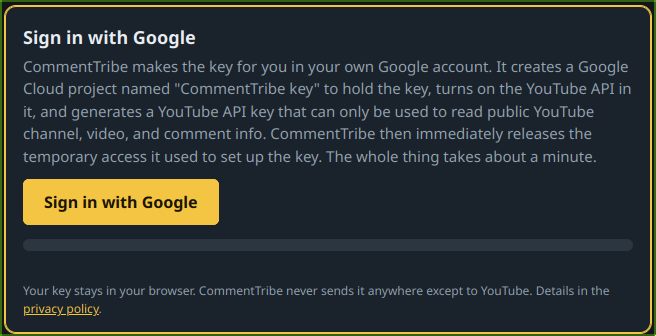
Open CommentTribe's settings and click ✨ Get a key, then Sign in with Google. It takes about a minute.
- Pick your Google account. Google shows a consent screen that names CommentTribe and the permission it asks for.
- Allow it. CommentTribe asks for the
cloud-platformpermission because it is the only one that covers the three things it needs to do below. - CommentTribe does the setup. In your account it:
- creates one new Google Cloud project, named "CommentTribe key" (or reuses the one it made before),
- turns on the YouTube Data API (and the API Keys API) in that project, and
- creates one API key there, restricted to the YouTube Data API (or reuses the one it made before), and saves it in the extension.
- It lets go of the access. The moment the YouTube API key is saved, CommentTribe revokes the permission. It doesn't keep the sign-in token, and it never touches your other projects or data.
The project and YouTube API key belong to you. You can see or delete them any time in the Google Cloud console, and check or remove CommentTribe's access at myaccount.google.com/permissions. The privacy policy has the full details.
The hands-on way: step by step
Prefer to click through it yourself? In the key page, choose Show me step by step and CommentTribe opens each Google Cloud page with sticky notes pointing at what to click. Or follow these steps on your own. You'll need a Google account. Each link opens the right page.
-
Create a project. Open New Project,
give it any name you like, and click Create.
Screenshot: the New Project page with the Create button
-
Switch to the new project. Click the 🔔 bell at the top right, then Select Project
under the project you just made. Its name should now show in the project picker at the top.
Screenshot: the notifications panel with Select Project
-
Turn on the YouTube API. Open the
YouTube Data API v3 page
and click Enable.
Screenshot: the YouTube Data API v3 page with the Enable button
-
Make your key. Open Credentials,
click Create credentials and pick API key.
Under API restrictions, choose Restrict key and tick
YouTube Data API v3, then click Create.
Screenshot: the Create API key panel with YouTube Data API v3 ticked
-
Copy it into CommentTribe. Copy the key, open CommentTribe's General Settings,
paste it into the YouTube Data API box and click Verify.
Screenshot: CommentTribe's settings with the key box and Verify button
Restricting the key to the YouTube Data API is optional but recommended: if the key ever leaked, it couldn't be used for anything else in your account.
Video guides
Making a YouTube API key is a common task, and plenty of people have filmed it. Google's pages change from time to time, so pick a recent one.
Search YouTube for API key walkthroughs ↗
A CommentTribe walkthrough video is coming soon.
Using CommentTribe without a key
You don't need a key to use CommentTribe. Without one, it works from the comments YouTube has already shown you on the page.
| Feature | Without a key | With a key |
|---|---|---|
| Star commenters and see them highlighted | Yes | Yes |
| Find your starred people in a video's comments | Only comments that have loaded as you scroll | The whole comment section, up to your scan depth |
| Remember where you've seen them (Activity) | Comments picked up as you scroll | Every scan |
| Community Sync: finds shared by other users | Yes, if you turn it on | Yes, if you turn it on |
| Latest video and stream for each person | No | Yes |
| New-upload notifications | No | Yes |
| Video titles in the Activity history | No | Yes |
The limits come from how YouTube loads comments: a few at a time, as you scroll. A starred person's comment buried at number 800 won't be found unless you scroll that far. With a key, CommentTribe asks YouTube for the comments directly, so it can read hundreds or thousands at once. Checking channels for new uploads also needs the API, so that only works with a key.
How the daily quota works
Google gives every project 10,000 units a day for the YouTube Data API. Each request uses units, and the allowance resets at midnight Pacific time. If it ever runs out, requests stop working until the reset, and nothing breaks.
What CommentTribe uses
| Action | Units |
|---|---|
| Reading 100 comments on a video | 1 unit |
| The top-100 scan that runs on every video | 1 unit |
| A deep scan at the maximum depth, 5,000 comments | up to 50 units |
| Checking up to 50 followed channels for new uploads | 1 unit per check |
| Looking up a channel's latest video, only when its video count changes | a few units |
Why a 5,000-comment scan depth is fine
Deep scan depth goes up to 5,000 comments. That sounds like a lot, but it's at most 50 units a video, and a scan stops early when a video has fewer comments, which most do. Watching 40 videos in a day at full depth uses at most 2,000 units. Add channel checks every 5 minutes for your priority people (about 300 units a day) and a busy day still comes in under a quarter of the daily allowance.
How CommentTribe keeps track
- The Daily Client Tally bar in General Settings counts every request CommentTribe makes. It resets at midnight Pacific, like Google's.
- That bar is CommentTribe's own count. For Google's official number, click Sync Google API Quota ↗ next to it. It opens your project's YouTube Data API quotas page in the Google Cloud console.
- If you allow it to read that page, CommentTribe takes today's number from it and brings its own count up to match. Google's number includes your key's use everywhere, such as CommentTribe in another browser or on another computer, which this browser can't see on its own.
- Google's page can run a few minutes behind, so CommentTribe only lowers its count to Google's when the gap is too big for that delay to explain.
- If Google ever reports the quota as used up, CommentTribe pauses all API work until the next reset instead of retrying.
Questions
Can CommentTribe see my Google account?
No. Signing in only lets it set up the project and key, and that access is revoked right after. It never reads your Gmail, YouTube account, other projects or anything else.
What happens if the daily allowance runs out?
Requests stop until midnight Pacific, then start again. CommentTribe notices and pauses its API work until the reset, so nothing needs fixing.
Can I use a key I already have?
Yes. Paste any YouTube Data API v3 key into General Settings and click Verify.
I removed my key, or reinstalled. Can I get it back?
Yes. While the key box in General Settings is empty, a 🔑 Get my key back button shows under it. Sign in with the same Google account and CommentTribe fetches the key it made for you, fills it in and checks it. It never makes a new project, so running it again doesn't use up your Google Cloud projects.
How do I remove the key?
Clear the key box in General Settings to stop using it. To delete it for good, delete the key or the whole project in the Google Cloud console.