 CommentTribe
Word cloud and timestamps
Two ways to read a comment section at a glance.
Where they appear
On a YouTube video, CommentTribe adds two boxes just above the comments: ☁ Cloud Tribe, the word cloud, and ⏱ Timestamps. Click ▶ show or ▼ hide on either one to open or fold it away.
Both are built from the same scan that looks for your starred commenters, so they use no extra quota. Everything happens in your browser. No comment text is sent anywhere.
The word cloud (Cloud Tribe)
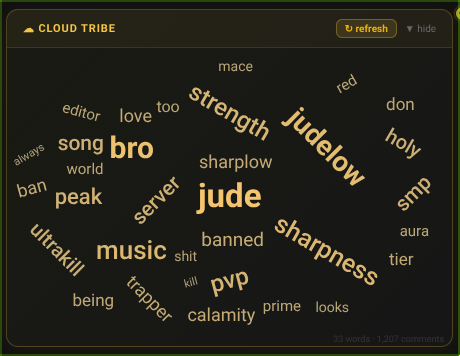
The word cloud shows what people are talking about under a video, without reading every comment.
How it's built
- Read the comments. CommentTribe takes every scanned comment and reply, and removes links, formatting and punctuation.
- Drop the filler. Words shorter than three letters are skipped, along with common words that appear under every video: "the", "and", "this", "that", "just", "with" and about 100 others. What's left are the words that make this comment section different.
- Count them. Each remaining word is counted across the whole scan.
- Draw the top 35. The most-used words are the biggest, brightest and boldest. Less-used words are smaller and may be tilted to fit. Words are placed in a spiral so none overlap.
Using it
- Hover over a word to see how many times it was mentioned.
- The line under the cloud shows how many words it placed and how many comments it read.
- ↻ refresh lays the words out again.
- The cloud fits its box. On a wider window the words grow to fill the space, and if you resize the window the cloud redraws to match.
- Clouds aren't saved. Each time you open a video, the cloud is built new from that scan, so it always matches the comments as they are now.
- A video needs at least 5 different words left after filtering, or the cloud stays empty.
- A deeper scan gives a truer picture. The top-100 scan shows the most popular comments, while a deep scan of up to 5,000 reaches the quieter ones too. You can set the depth in General Settings.
Timestamps
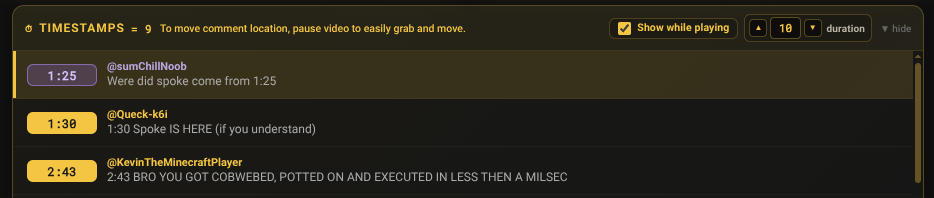
People often leave comments like "4:20 I lost it". The Timestamps box collects every one of those into a single list, in video order, so you can jump straight to the moments other viewers point out.
How it's built
- Find the times. CommentTribe looks through each scanned comment and reply for times written
as
m:ss,mm:ssorh:mm:ss, like4:20or1:02:45. - Skip chapter lists. A comment with more than one time in it is usually a list of chapters or a timestamp dump. Those are left out, so the list stays about single moments people reacted to.
- Sort by time. Moments are listed from the start of the video to the end. The count next to the title shows how many were found.
Using it
- Each row shows the time, who wrote it (marked "reply" if it was a reply) and the part of the comment around the time.
- Click a row and the video jumps to that moment. The comment appears on the player so you can read it while you watch.
- A return arrow on the player takes you back to the list and hides the comment.
- Rows you've clicked turn purple so you can tell what you've already seen. This resets when you leave the video.
- The box shows five rows at a time. Scroll it to see more.
Show while playing
Tick Show while playing in the Timestamps box and the comments pop up on the player by themselves, about a second before each moment, like a crowd watching along with you.
- Duration sets how long each comment stays on screen: 4 seconds to start, anywhere from 1 to 30.
- Move it by dragging the comment card. Pausing the video first makes it easier to grab. CommentTribe remembers where you put it.
- Clicking a row yourself takes priority: the automatic pop-ups wait until you close that comment.
Click on the image to play the clip with timestamps.
What they need
The word cloud and timestamps come from CommentTribe's comment scan, which uses a YouTube API key. Without a key, CommentTribe still highlights your starred commenters, but these two boxes have nothing to read. The API key guide shows how to get a key in about a minute, and how little quota a scan uses.