
What every button does
Each screen has numbered markers. Find the number in the key next to it, or click a marker to jump to its line. The pictures use sample data.
The popup
Click the CommentTribe icon in your browser toolbar. Your starred channels are listed newest upload first, and channels that are live right now show at the top.
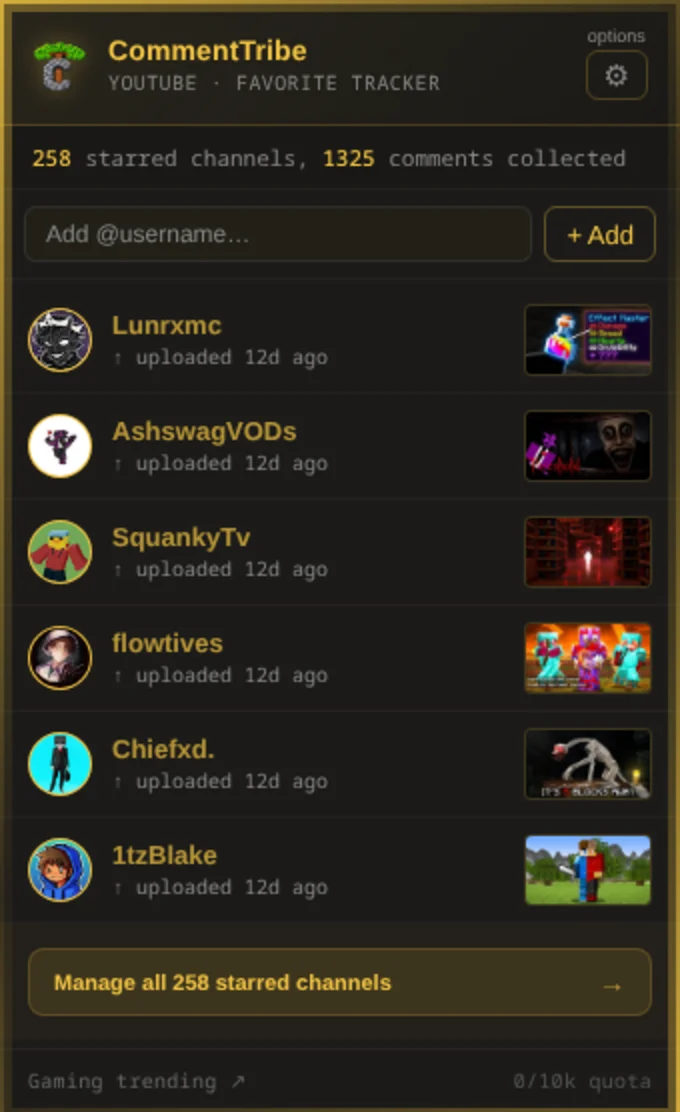
- 1commenttribe.com Opens this website.
- 2Options Opens Options, where you manage channels and settings.
- 3Add a channel Type a YouTube @username and click + Add to star that channel.
- 4Channel picture Opens that channel's Activity page: every comment of theirs CommentTribe has seen.
- 5Latest upload Opens the channel's newest video on YouTube. Hover it for a bigger preview.
- 6Manage all Opens the full list of starred channels (Manage Channels).
- 7Gaming trending Opens YouTube's trending gaming videos.
- 8Quota How many YouTube quota units your key has used today, out of 10,000.
A channel's Activity page
Open it from the popup, from Manage Channels, or from a commenter's name on YouTube. It collects every comment of theirs CommentTribe has seen, with their Shorts, videos and streams down the sides. Each comment in Seen commenting on shows who posted the video (click to open that channel) and a View Comment button that opens the video on YouTube with their comment highlighted.
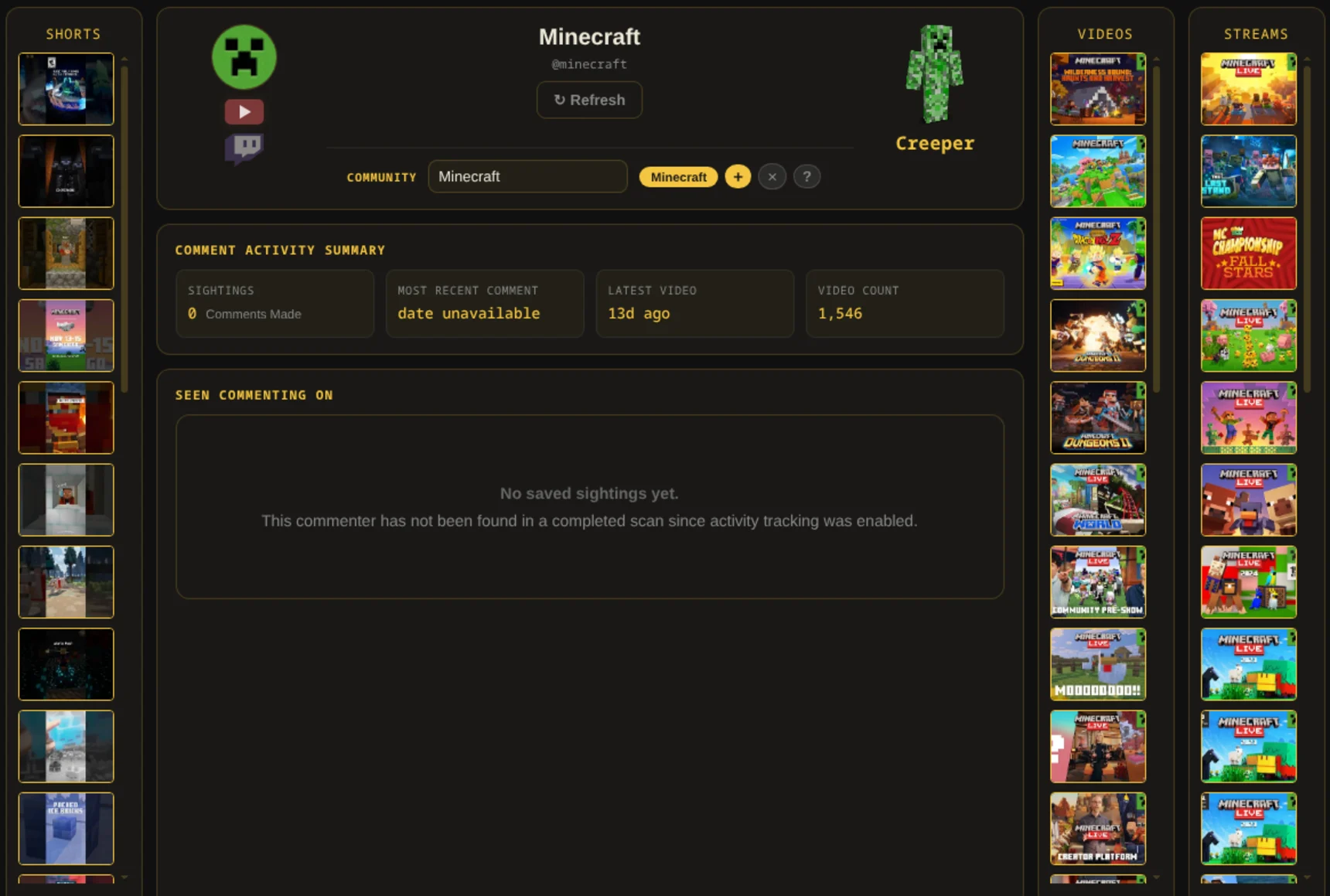
- 1Channel picture Opens their YouTube channel.
- 2Play Plays their latest video in CommentTribe's player. Ctrl-click opens it on YouTube instead. While they're live on YouTube, it glows orange with a LIVE tag beside it, and plays the live stream.
- 3Twitch Searches Twitch for this channel.
- 4Refresh Fetches their newest uploads, streams, counts and picture.
- 5Community Pick the SMP or category this channel belongs to, or type a new one.
- 6+ × ? + adds a second SMP or category, × removes one, and ? asks Google which SMP they play on.
- 7Minecraft skin Opens the skin menu, to fix a wrong match: look it up, copy it from another channel, or paste a name.
- 8Shorts Their Shorts, newest first. Click one to play it in CommentTribe's player; its arrows step through the column.
- 9Videos Their videos, newest first. Click one to play it the same way.
- 10Streams Their streams, newest first. A stream that's live right now sits on top with a LIVE tag.
Manage Channels
Options → Manage Channels lists every starred channel. Channels are checked for new uploads every 4 hours, priority channels every 5 minutes.
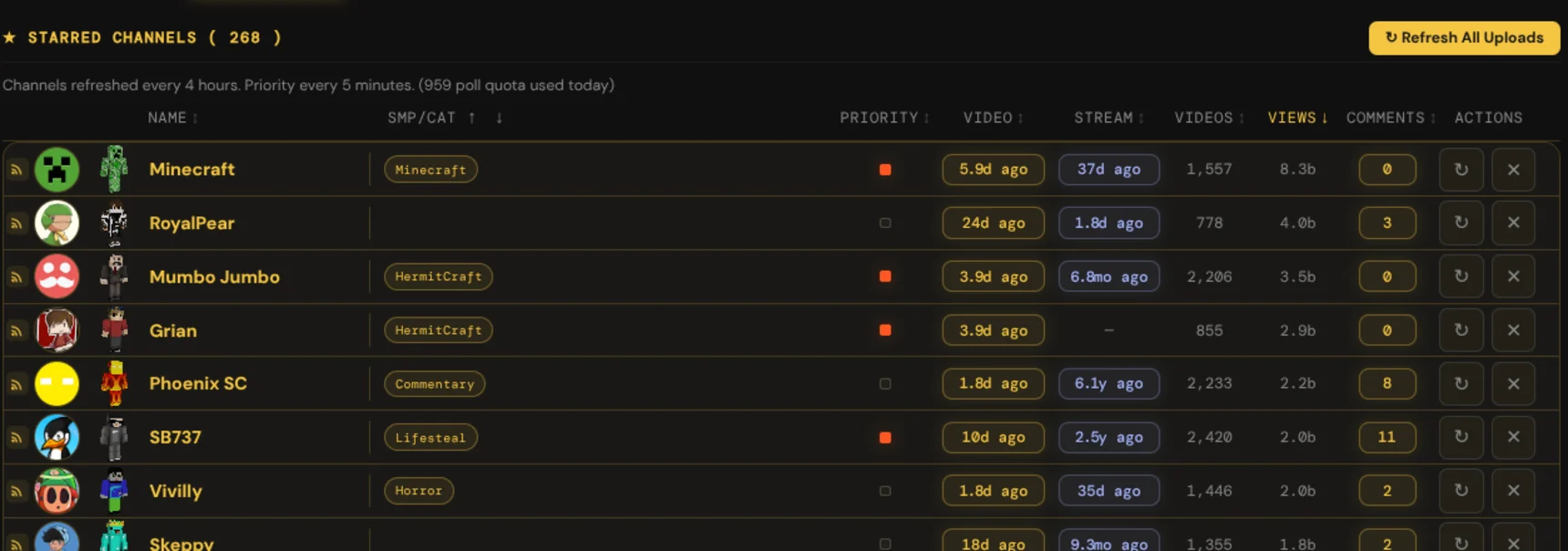
- 1Refresh All Uploads Fetches the newest uploads, streams and counts for every channel.
- 2Column names Click a column name to sort by it, and click again to flip the order. The ↑ ↓ next to SMP/CAT sort the SMP and category groups.
- 3Playlists Opens a menu of the channel's playlists: all videos, Shorts, livestreams, and the playlists they made.
- 4Picture Opens their YouTube channel.
- 5Name Opens their Activity page.
- 6SMP/category tag Opens that SMP or category's page.
- 7Priority Checks this channel every 5 minutes instead of every 4 hours, so new videos show up fast.
- 8Video Opens their latest video. It glows brighter the newer it is.
- 9Stream Opens their latest stream. It says LIVE while they're streaming.
- 10Comments How many of their comments CommentTribe has seen. Click to open their Activity page.
- 11↻ Refreshes just this channel.
- 12✕ Removes the channel from your stars.
SMPs and categories
Options → SMPs/Categories groups your channels by the SMP or category they belong to.
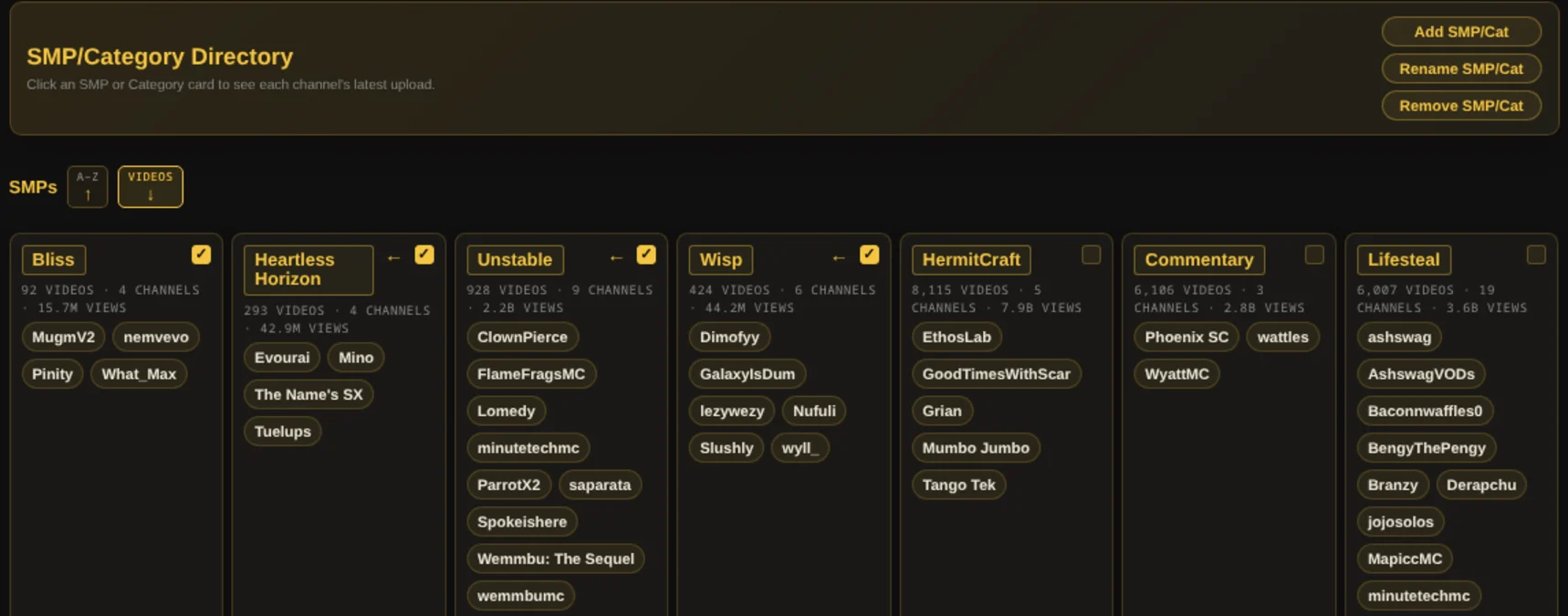
- 1Add, rename, remove Make a new SMP or category, rename one, or delete one.
- 2Sort Sort the cards A to Z, or by total videos.
- 3Card name Opens that SMP or category's page, with each channel's latest upload.
- 4Favorite Tick it to keep that card at the top.
- 5← Moves a favorite card one place earlier.
- 6Channel Opens that channel's Activity page.
General Settings
Options → General Settings holds your YouTube API key, scan settings, Community Sync and backups.
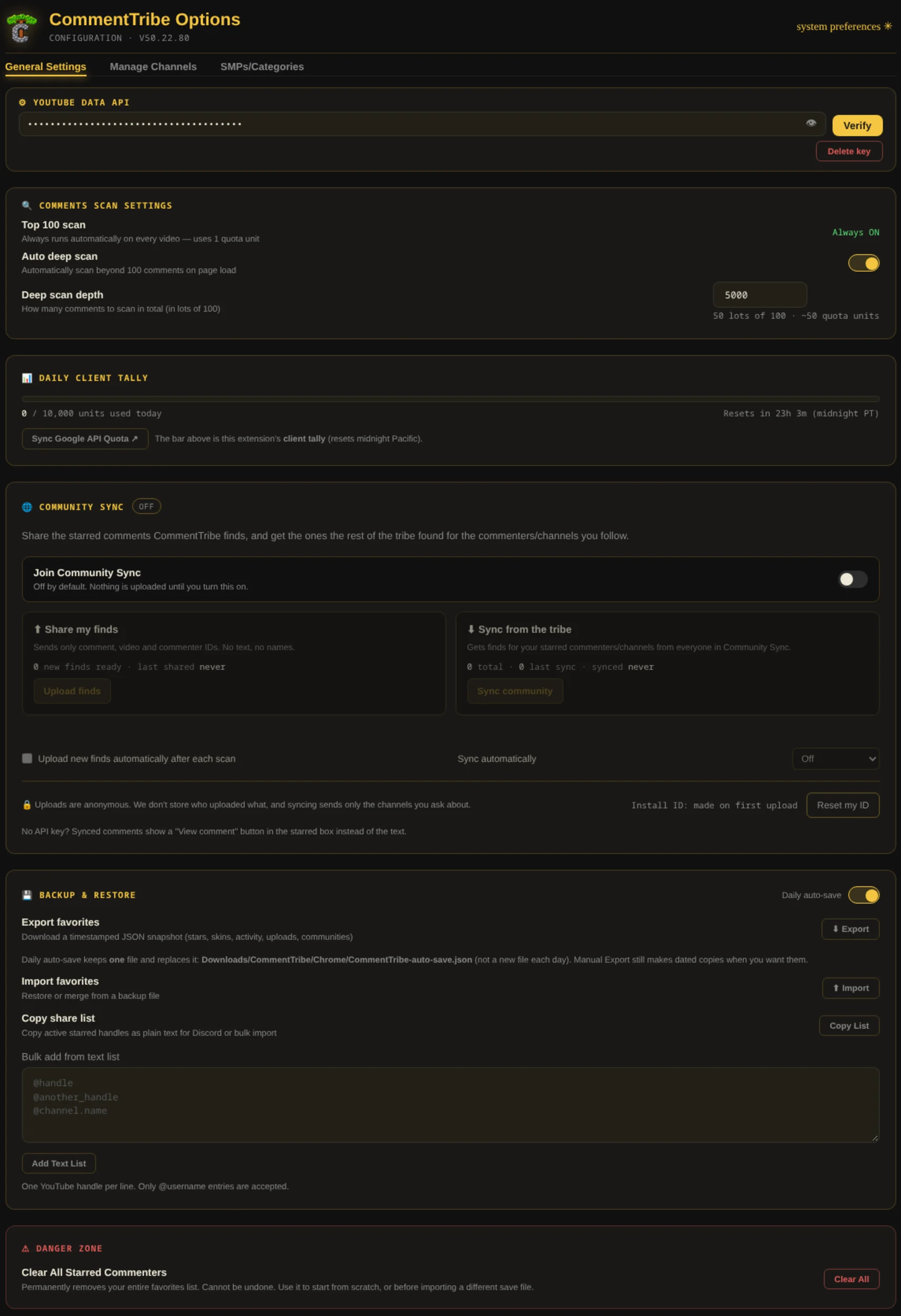
- 1Tabs Switch between General Settings, Manage Channels and SMPs/Categories.
- 2System preferences Colors, text size and what the popup shows.
- 3API key Your YouTube Data API key. The eye shows or hides it. With no key saved, a ✨ Get a key button sets one up for you.
- 4Verify Checks that the key works.
- 5Delete key Removes the key from CommentTribe.
- 6Auto deep scan Keeps scanning past the top 100 comments when a video opens.
- 7Deep scan depth How many comments to scan in total, in lots of 100. Each lot uses 1 quota unit.
- 8Sync Google API Quota Opens Google's quota page and reads today's real number into the tally.
- 9Join Community Sync Turns sharing on. Nothing is uploaded until you do.
- 10Upload finds Shares your new finds: only comment, video and commenter IDs, never text or names.
- 11Sync community Gets finds from everyone else for the channels you star.
- 12Upload automatically Shares new finds after each scan without clicking.
- 13Sync automatically Gets new community finds every 6 hours or daily.
- 14Reset my ID Makes a new anonymous install ID for future uploads.
- 15Daily auto-save Saves one backup file a day to your Downloads folder.
- 16Export Saves a dated backup of your stars, skins, activity and communities.
- 17Import Restores or merges a backup file.
- 18Copy List Copies your starred @handles as text, for Discord or to share.
- 19Bulk add Paste @handles, one per line, then click Add Text List to star them all.
- 20Clear All Removes every starred channel. This can't be undone, so export first.
System preferences
Open it from "system preferences" at the top of Options or an Activity page. Back returns you to where you came from.
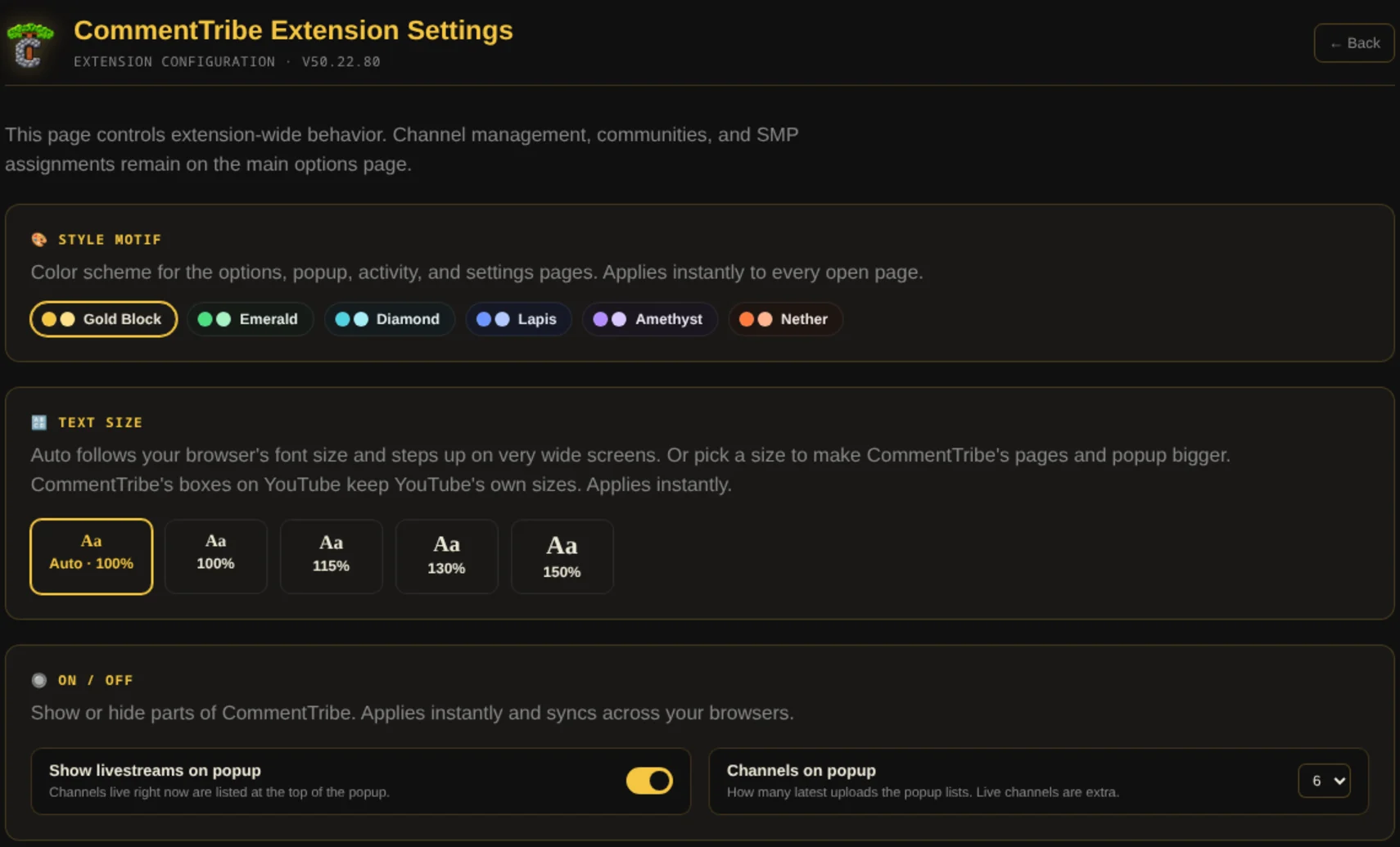
- 1Back Returns to the page you opened it from.
- 2Style motif Color scheme for every CommentTribe page and the popup.
- 3Text size Auto follows your browser, or pick a bigger size. Boxes on YouTube keep YouTube's sizes.
- 4Livestreams on popup Lists channels that are live right now at the top of the popup.
- 5Channels on popup How many latest uploads the popup lists.